JavaScript Basics
A quick reference for the JavaScript concepts I have covered so far. Designed to help me revise key ideas quickly while working through course challenges and practice exercises.
- Setup & DOM
- Linking JS to HTML
- The DOM
- DOM Events
- localStorage
- Core JavaScript
- Console and Comments
- Data Types
- Operators and Methods
- Conditionals
- Functions
- Scope
- Arrays
- Strings
- Loops
- Loop Debugging
- Objects
- Advanced Objects
- Destructuring
- Classes
- Advanced JavaScript
- Higher-Order Functions
- Iterators
- JS Debugging
- Error Handling
- Regular Expressions
- Form Validation
- Modules
Linking JS to HTML
Inline — JS written directly between the script tags:

<script>
  console.log('Hello');
</script>

External — JS in a separate file, linked via src:

<script src="app.js"></script>
Where to place the script tag — modern convention:

Put the <script> tag in <head> and use defer or async.

<script src="app.js" defer></script>
<script src="app.js" async></script>

defer  → waits for the entire HTML to be parsed before running the script
          use this for scripts that interact with the page (most of the time)

async  → downloads the script in parallel, runs it immediately when downloaded
          use this for independent scripts (e.g. analytics) that don't touch the DOM
Old convention (still works, now outdated):

Put <script> just before </body> so it doesn't block HTML loading.
Modern approach: use <head> + defer instead.
The DOM
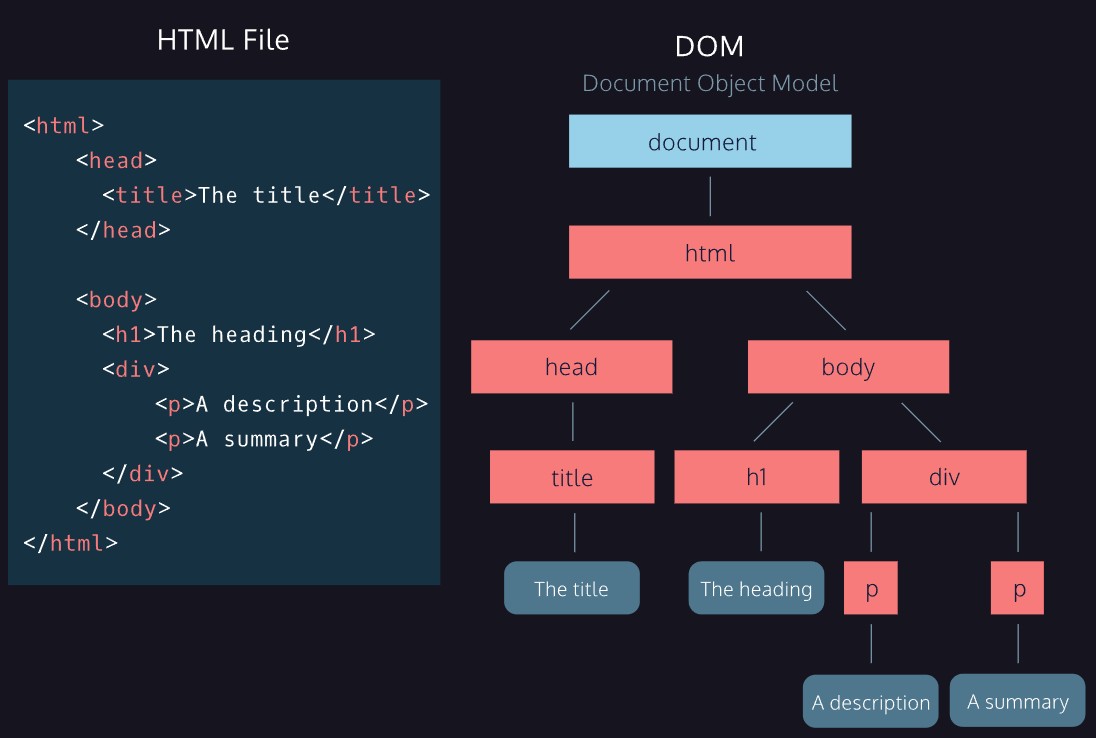
The DOM (Document Object Model) is a tree-structured representation of an
HTML page that JavaScript can read and modify.

When a browser loads an HTML file it builds the DOM from it.
JavaScript uses the DOM to access and update the page without reloading.

document  → the JavaScript keyword that gives you access to the DOM
              it represents the entire HTML page
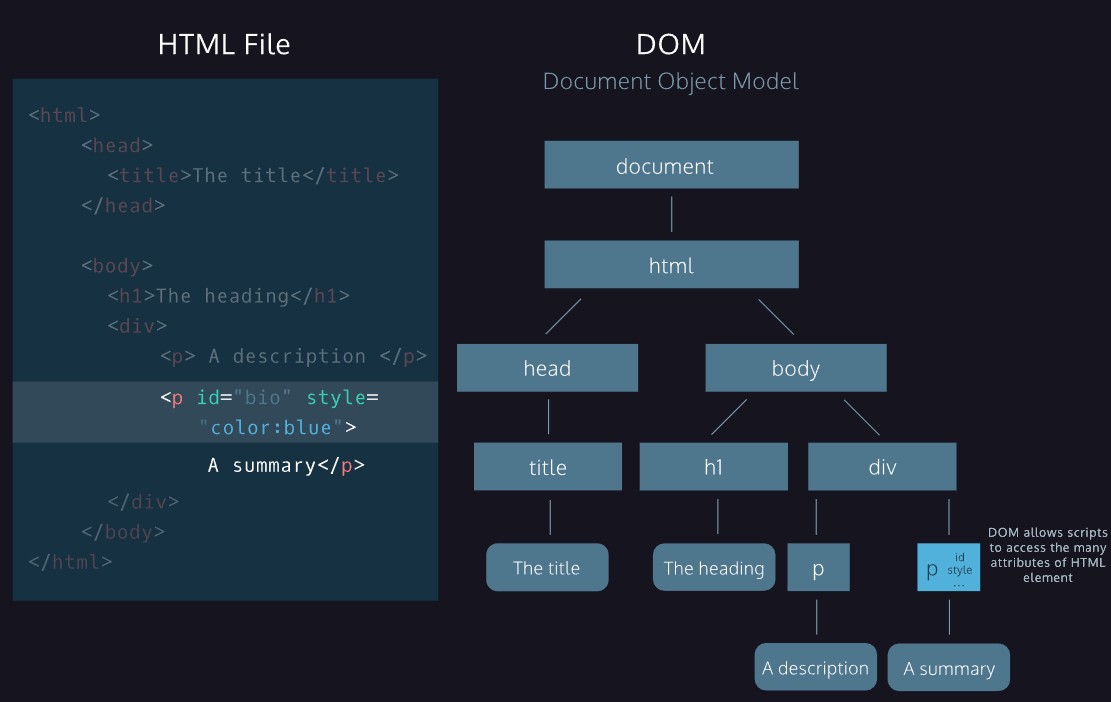
DOM allows scripts to access the attributes of HTML elements:

<p id="bio" style="color:blue">A summary</p>

In the DOM this element node carries its id, style, and other
attributes — JavaScript can read or change any of them.
Selecting elements:

document.querySelector('.class')      → returns first match using a CSS selector
                                         works with classes (.name), IDs (#name), tags (li)
document.getElementById('id')         → returns a single element by ID
document.getElementsByClassName('c')  → returns a collection — use [0] for first item
document.getElementsByTagName('tag')  → returns a collection — use [0] for first item
document.body                         → direct shortcut — body is a special property of document
                                         no other elements work this way
document.body.children[0]             → first child element of body
Modifying elements:

element.innerHTML = 'new content'       → changes the content of an element
element.style.backgroundColor = 'red'  → changes a CSS style (use camelCase)
element.style.color = 'white'
Creating, adding and removing elements — always separate steps:

const el = document.createElement('li')  → create the element
el.id = 'vespa'                           → set attributes
el.innerHTML = 'Rent a Vespa'            → set content
document.getElementById('list').appendChild(el)  → attach it to the page

const el = document.getElementById('vespa')
document.getElementById('list').removeChild(el)  → removeChild must be called
                                                     on the direct parent element

el.remove()  → modern alternative — removes the element directly
               call it on the element itself, not the parent
               not to be confused with delete, which removes object properties
Traversal:

element.children     → list of an element's child elements
element.parentNode   → the parent element (moves towards the root)
Events:

element.onclick = functionName  → attach a click event handler
                                   NO parentheses — you pass the function,
                                   not call it
Common mistakes:

getElementsByClassName / getElementsByTagName return a COLLECTION not one element
→ always use [0] to target the first item, [1] for second, etc.

removeChild must be called on the DIRECT parent of the element you're removing
→ if vespa is inside italy-attractions, call italy-attractions.removeChild(vespa)

Creating an element does NOT add it to the page
→ you must also call appendChild to attach it

Pass variable names without quotes to DOM methods
→ removeChild(elementToRemove) not removeChild('elementToRemove')
DOM Events
addEventListener — attaches an event handler to an element:

element.addEventListener('eventType', functionName);

Two arguments:
1. event type  → a string: 'click', 'mouseover', 'keydown' etc.
2. handler     → the function to run — no parentheses, just the name

Can stack multiple handlers on the same element without overwriting.
removeEventListener — stops a handler from listening:

element.removeEventListener('eventType', functionName);

Mirrors addEventListener exactly — same element, same event, same function name.
onevent syntax — alternative to addEventListener:

element.onmouseover = functionName;   // no quotes, no comma, no parentheses
element.onclick = functionName;

"onevent" in docs is a placeholder — replace "event" with the actual event name.

Difference from addEventListener:
addEventListener  → multiple handlers can stack, none overwrite each other
onevent           → only one handler at a time, second assignment overwrites the first
The event object — automatically passed into the handler by the browser:

element.addEventListener('click', function(event) {
  event.target        → the element the event fires ON (the source)
                          NOT necessarily the element being modified by the handler
                          e.g. button clicked → event.target is the button
                               even if the handler changes a completely different element
  event.type          → the event type as a string ('click', 'mouseover' etc.)
  event.timeStamp     → milliseconds since page loaded when event fired
});

The parameter name can be anything — event, e, evt — the browser fills it in.
Mouse events:

click        → mouse clicked
mouseover    → mouse enters the element
mouseout     → mouse leaves the element OR any of its children
mouseleave   → mouse leaves the element only (not triggered by children)
mousedown    → mouse button pressed down
mouseup      → mouse button released
wheel        → mouse wheel rotated or trackpad scrolled
               use 'wheel' — 'mousewheel' is deprecated and not recommended
Keyboard events — attach to document, not individual elements:

document.addEventListener('keydown', functionName);  → key pressed down
document.addEventListener('keyup', functionName);    → key released

Keyboard events fire on the whole page so they belong on document.
Common mistakes:

Forgot quotes around event type:
→ addEventListener('click', fn) not addEventListener(click, fn)

Used onevent as literal code:
→ element.onmouseover = fn  not  element.onevent('mouseover', fn)

Attached keyboard event to element instead of document:
→ document.addEventListener('keydown', fn) not ball.addEventListener('keydown', fn)

Used mousewheel instead of wheel:
→ 'wheel' is the modern standard, 'mousewheel' is deprecated

Confused mouseout and mouseleave:
→ mouseout fires when leaving element OR its children
→ mouseleave only fires when leaving the element itself
localStorage
localStorage lets you save data in the browser that persists across page reloads and browser sessions — until it is explicitly cleared.
| Method | Description | Example |
|---|---|---|
| setItem(key, value) | Saves a value under a key. | localStorage.setItem('isDarkMode', 'true') |
| getItem(key) | Retrieves a stored value. Returns null if the key doesn't exist. | localStorage.getItem('isDarkMode') |
| removeItem(key) | Deletes a single stored item. | localStorage.removeItem('isDarkMode') |
| clear() | Deletes everything stored for the site. | localStorage.clear() |
// Save the user's preference
localStorage.setItem('isDarkMode', 'false');

// Read it back on page load
if (localStorage.getItem('isDarkMode') === 'false') {
    toggleLightMode();
}
localStorage only stores strings.
Booleans must be stored as 'true' or 'false' and compared as strings:

  localStorage.setItem('isDarkMode', 'false');
  localStorage.getItem('isDarkMode') === 'false'  // true ✓
  localStorage.getItem('isDarkMode') === false     // false ✗ (wrong type)

For objects or arrays, use JSON:
  localStorage.setItem('user', JSON.stringify({ name: 'Alan' }));
  const user = JSON.parse(localStorage.getItem('user'));
Console and Comments
| Concept | Meaning | Example |
|---|---|---|
| console.log() | Prints output to the console. | console.log('Hello world'); |
| // | Creates a single-line comment. | // This is a comment |
| /* */ | Creates a multi-line comment. | /* Multi-line comment */ |
console.log('JavaScript is working');

// This is a single-line comment

/*
   This is a multi-line comment
*/
Data Types
| Data Type | Description | Example |
|---|---|---|
| Number | Any numeric value. | 23 , 23.8879 |
| BigInt | Used for very large integers. | 12345678901234567890n |
| String | Text wrapped in quotes. | 'Hello' |
| Boolean | Represents true or false. | true , false |
| null | Represents intentional absence of value. | null |
| undefined | Represents a value that has not been assigned. | undefined |
| Symbol | A unique and immutable primitive value. | Symbol('id') |
| Object | Stores collections of data and more complex entities. | { name: 'Alan' } |
console.log(42);
console.log('Hello');
console.log(true);
console.log(null);
console.log(undefined);
Operators, Properties and Methods
Arithmetic Operators
| Operator | Use | Example |
|---|---|---|
| + | Addition | 5 + 3 |
| - | Subtraction | 5 - 3 |
| * | Multiplication | 5 * 3 |
| / | Division | 6 / 2 |
| % | Remainder | 7 % 2 |
Properties and Methods
| Concept | Description | Example |
|---|---|---|
| .length | A property gives information about data. | 'Hello'.length |
| .toUpperCase() | A method performs an action on data. | 'hello'.toUpperCase() |
| Math | A built-in object with useful properties and methods. | Math.random() |
console.log('JavaScript'.length);
console.log('hello'.toUpperCase());
console.log(Math.floor(4.9));
Conditional Statements
| Concept | Description | Example |
|---|---|---|
| if | Runs code if a condition is true. | if (x > 5) { ... } |
| if...else | Chooses between two code paths. | if (x > 5) { ... } else { ... } |
| else if | Adds extra conditions. | else if (x === 5) |
| <, >, <=, >=, ===, !== | Comparison operators. | x === 10 |
| && | Logical AND, both conditions must be true. | x > 5 && y > 5 |
| || | Logical OR, one condition must be true. | x > 5 || y > 5 |
| ! | Logical NOT, reverses truthiness. | !true |
| ? | Ternary operator for short if...else logic. | age >= 18 ? 'Adult' : 'Minor' |
| switch | Checks many possible cases. | switch(day) { ... } |
For a full description of conditional statements and comparison operators, see W3Schools Operators Reference | W3Schools Comparison Operators Reference
let age = 18;

if (age >= 18) {
    console.log('Adult');
} else {
    console.log('Minor');
}

let result = age >= 18 ? 'Adult' : 'Minor';
console.log(result);
let day = 'Monday';

switch (day) {
    case 'Monday':
        console.log('Start of the week');
        break;
    case 'Friday':
        console.log('Nearly the weekend');
        break;
    default:
        console.log('A normal day');
        break;
}
Functions
| Concept | Description | Example |
|---|---|---|
| Function | A reusable block of code used to perform a task. | function greet() { ... } |
| Parameter | A named variable inside the function definition. | function greet(name) |
| Argument | The value passed into the function when called. | greet('Alan') |
| return | Sends a value back from the function. | return width * height; |
| Default parameter | Gives a parameter a fallback value. | function greet(name = 'Guest') |
| Function expression | A function stored in a variable. | const greet = function() { ... }; |
| Arrow function | Shorter ES6 function syntax. | const greet = () => { ... }; |
| Method shorthand | Short way to define a function in an object. | greet() {} |
Function Declaration
function greetWorld() {
    console.log('Hello, World!');
}

greetWorld();
Parameters and Arguments
function calculateArea(width, height) {
    return width * height;
}

console.log(calculateArea(5, 4));
Default Parameters
function greetUser(name = 'Guest') {
    return `Hello, ${name}!`;
}

console.log(greetUser());
console.log(greetUser('Alan'));
Function Expression
const calculateArea = function(width, height) {
    const area = width * height;
    return area;
};
Arrow Function
const calculateAreaArrow = (width, height) => {
    const area = width * height;
    return area;
};
Concise Arrow Function
const doubleNumber = number => number + number;

console.log(doubleNumber(5));
Short Hand
// Longhand (function expression)
const robot = {
  greet: function() {
    console.log('Hello');
  }
};

// Shorthand (cleaner)
const robot = {
  greet() {
    console.log('Hello');
  }
};
KEY: Blue = Function name Orange = Parameter / argument
Scope
| Concept | Description |
|---|---|
| Scope | Determines where variables can be accessed in a program. |
| Block | Code inside curly braces { } . |
| Global scope | Variables are available everywhere in the program. |
| Global variable | A variable declared in the global scope. |
| Block scope | Variables are only available inside a specific block. |
| Local variable | A variable declared inside a block. |
| Global namespace | The space in code that stores globally scoped information. |
| Scope pollution | Too many global variables or reused names causing confusion. |
const city = 'London'; // Global variable
function showCity() {
console.log(city);
}
showCity();
if (true) {
let message = 'Inside the block';
console.log(message);
}
// console.log(message); // This would cause an error
Variable shadowing — a local variable with the same name as a global one
hides the global inside that function. The global is not changed.
const greeting = 'Hello'; // global
function sendGreeting() {
const greeting = 'Hi'; // local — shadows the global
console.log(greeting); // 'Hi' — local takes priority
}
sendGreeting(); // 'Hi'
console.log(greeting); // 'Hello' — global is unchanged
Watch out: if you expect to use the global but declared a local with the
same name, you will get the local value — not the global.
Arrays
| Concept | Description | Example |
|---|---|---|
| Array | Stores multiple values in a single variable. Arrays can store mixed data types. | const mixed = [1, 'hello', true, null]; |
| Index | Each item has a numbered position starting at 0. | fruits[0] |
| .length | Shows how many items are in the array. | fruits.length |
| .push() | Adds an item to the end of an array. Use push() for arrays — .add() is for Sets, not arrays. | this.values.push(inputValue) |
| .pop() | Mutates the original array by removing its last item, and RETURNS the removed item (not the array). Must be called on the actual variable — calling it on a fresh array literal like ['a','b'].pop() does nothing useful, since nothing is holding a reference to that array. | fruits.pop() |
| .shift() | Removes the first item from an array. | fruits.shift() |
| .unshift() | Adds an item to the start of an array. | fruits.unshift('apple') |
| .slice() | Returns part of an array without changing the original. | fruits.slice(0, 2) |
| .splice() | Removes and/or replaces items in an array. | arr.splice(6, 5, 'new item') |
| Mutating methods | Some methods change the original array. | push(), pop(), shift() |
| Nested arrays | Arrays can contain other arrays. | const nested = [[1, 2], [3, 4]]; |
| .join() | Combines array items into a string. | arr.join(' ') |
| .includes() | Checks if an array contains a value. Returns true or false. | arr.includes('apple') |
slice for portions:
array.slice(0, lastIndex) returns items up to but NOT including lastIndex
['a', 'b', 'c', 'd'].slice(0, 2) → ['a', 'b']
const fruits = ['apple', 'banana', 'pear'];
console.log(fruits[0]); // apple
console.log(fruits.length); // 3
fruits[1] = 'grape';
fruits.push('orange'); // standalone array
this.values.push(inputValue); // inside a class method
fruits.pop();
const nested = [[1, 2], [3, 4]];
console.log(nested[1][0]); // 3
arr.splice(start, deleteCount, newItem)
arr.join() // default = comma
arr.join(' ') // space (sentence)
For less common array methods, see MDN Array Reference or W3Schools Array Reference .
Strings
Strings share some behaviours with arrays and can be looped through and accessed by index.
| Concept | Description | Example |
|---|---|---|
| Character access | Access individual characters using an index, like an array. | 'hello'[1] → 'e' |
| .length | Returns the number of characters in the string. | 'hello'.length → 5 |
const word = 'hello';
console.log(word[0]); // h
console.log(word[1]); // e
console.log(word.length); // 5
// Loop through a string with a for loop
for (let i = 0; i < word.length; i++) {
console.log(word[i]);
}
Loops
| Concept | Description | Example |
|---|---|---|
| for loop | Runs code a set number of times. | for (let i = 0; i < arr.length; i++) |
| while loop | Runs while a condition is true. | while (x < 5) |
| do...while | Runs at least once before checking condition. | do { ... } while (x < 5) |
| nested loop | A loop inside another loop. | for (...) { for (...) { ... } } |
| break | Stops the loop completely. | break; |
| continue | Skips the current iteration. | continue; |
| forEach limitation | forEach only works on arrays. Use a for loop to iterate over a string. |
for (let i = 0; i < arr.length; i++) {
console.log(arr[i]);
}
let i = 0;
while (i < 3) {
i++;
}
do {
i++;
} while (i < 5);
// break → exit loop early
for (let item of arr) {
if (item === 'stop') {
break;
}
console.log(item);
}
// continue → skip one iteration
for (let item of arr) {
if (item === 'skip') {
continue;
}
console.log(item);
}
For more loop details, see MDN Loops Guide .
Loop Debugging
| Problem | Check | Example |
|---|---|---|
| Loop not running | Check condition is true | i < arr.length |
| Infinite loop | Check counter updates | i++ |
| Wrong number of loops | Check start and end values | i = 0 |
| Wrong values | Check index vs value | arr[i] |
// Check loop is running
console.log('loop started');
// Check counter value
console.log('i is ' + i);
// Check values inside loop
console.log(arr[i]);
Tip: Use console.log inside loops to track how many times they run and what values change.
Objects
| Concept | Description | Example |
|---|---|---|
| Object | Stores data as key-value pairs. | const user = { name: 'Alan' }; |
| Object literal | Create an object using { }. | { key: 'value' } |
| Dot notation | Access a property using . | user.name |
| Bracket notation | Access property using [ ] | user['name'] |
| Property assignment | Add or update values. | user.age = 30 |
| Method | Function stored in an object. | user.sayHi = function() {} |
| Nested object | Object inside another object. | user.address.city |
| Mutable | Object properties can be changed. | obj.key = 'new value' |
| Pass by reference | Changes inside functions affect the original object. | function update(obj) { obj.x = 1 } |
| for...in | Loops through object keys. | for (let key in obj) |
| delete | Removes a property or method from an object. delete is the keyword for objects — remove is a DOM method for elements, not for object properties. | delete obj.propertyName |
// Create object
let spaceship = {
'Fuel Type': 'Turbo Fuel',
homePlanet: 'Earth',
crew: {
captain: {
name: 'Lily',
degree: 'Computer Engineering'
}
}
};
// Access
let crewCount = spaceship.numCrew;
let isActive = spaceship['Active Mission'];
// Update / Add
spaceship.color = 'glorious gold';
spaceship.numEngines = 9;
// Delete
delete spaceship['Secret Mission'];
// Method
let alienShip = {
takeOff() {
console.log('Spim... Borp... Glix... Blastoff!');
}
};
alienShip.takeOff();
// Pass by reference
let greenEnergy = obj => {
obj['Fuel Type'] = 'avocado oil';
};
greenEnergy(spaceship);
// Loop through object (for...in)
for (let crewMember in spaceship.crew) {
console.log(`${crewMember}: ${spaceship.crew[crewMember].name}`);
}
// Array inside object
spaceship.passengers = [{ name: 'Alan' }];
console.log(spaceship.passengers[0].name);
// Array method from object
let planetArray = spaceship.flightPath;
console.log(planetArray.join('|'));
Array of Objects
const users = [
{ name: 'Alan' },
{ name: 'Debs' }
];
// Bridge → [0] gets into the object
// Key → .name gets the value
console.log(users[0].name);
Tip: [0] gets you into the object, then use .key to access data.
For more details, see MDN Object Reference or W3Schools Objects .
Advanced Objects
The go-to documentation for JavaScript Objects| Concept | Description | Example |
|---|---|---|
| this | Refers to the current object. | this.key |
| Method shorthand | Short way to define a function in an object. | method() {} |
| Getter | Access property like a variable. | get prop() {} |
| Setter | Update property with validation. | set prop(value) {} |
| Factory function | Create multiple objects. | const obj = factory() |
| Property shorthand | Short way to assign properties. | { key } |
| Destructuring | Extract values into variables. | const { key } = obj |
| for...in | Loops through object keys. | for (let key in obj) |
| Object.keys() | Get array of keys. | Object.keys(obj) |
| Object.entries() | Get key-value pairs. | Object.entries(obj) |
| Object.assign() | Copy or merge objects. | Object.assign({}, obj) |
// this
const robot = {
model: '1E78V2',
energyLevel: 100,
provideInfo() {
return `I am ${this.model} and my current energy level is ${this.energyLevel}`;
}
};
// Method shorthand vs longhand
const obj = {
greet: function() {},
sayHi() {}
};
// Getter / Setter
const machine = {
_power: 10,
get power() {
return this._power;
},
set power(value) {
if (value > 0) {
this._power = value;
}
}
};
// Factory function
const robotFactory = (model, mobile) => {
return {
model,
mobile,
beep() {
console.log('Beep Boop');
}
};
};
// Destructuring
const { model } = robot;
// for...in
for (let key in robot) {
console.log(key);
console.log(robot[key]);
}
// Built-in methods
Object.keys(robot);
Object.entries(robot);
Object.assign({}, robot);
Key Notes
- this → refers to the current object
- get → no parameters, used to read
- set → one parameter, used to update
- for...in → gives keys, use obj[key] for values
- Destructuring → variable name must match key
- Object.assign(target, source) → copies properties
Underscore properties
In _name: name
_name → the key (left of colon) — the stored property used internally by the getter and setter
name → the value (right of colon) — the parameter passed in from outside
The underscore is a convention to signal: "don't access this directly, use the getter/setter."
Setter validation examples
// Check it is a string
set name(value) {
if (typeof value === 'string') {
this._name = value;
}
}
// Check it is a non-empty string
set name(value) {
if (typeof value === 'string' && value.length > 0) {
this._name = value;
}
}
// No validation — set directly
set name(value) {
this._name = value;
}
Useful Links
MDN Objects | MDN this | MDN Destructuring | W3Schools Objects
Destructuring
Destructuring (ES6) unpacks values from arrays and objects into variables or function parameters. It is syntactic sugar — not required, but shorter and clearer than accessing items one at a time, and common enough in other people's code (including React) to be worth recognising.
| Concept | Description | Example |
|---|---|---|
| Array destructuring | Unpacks array elements into variables by position — order matters. | let [a, b, c] = arr; |
| Object destructuring | Unpacks object properties into variables — variable name must match the property name. | let { x, y, z } = obj; |
| Destructured parameters | Captures specific object properties as named function parameters, instead of passing the whole object and reading properties inside the body. Only the properties actually needed have to be named. | function fn({ model, maker }) { ... } |
Array Destructuring
let cars = ['ferrari', 'tesla', 'cadillac'];
// Without destructuring
let car1 = cars[0];
let car2 = cars[1];
let car3 = cars[2];
// With destructuring
let [car1, car2, car3] = cars;
console.log(car1, car2, car3); // ferrari tesla cadillac
Object Destructuring
let destinations = { x: 'LA', y: 'NYC', z: 'MIA' };
// Without destructuring
let x = destinations.x;
let y = destinations.y;
let z = destinations.z;
// With destructuring — variable names must match the property names
let { x, y, z } = destinations;
console.log(x, y, z); // LA NYC MIA
Destructuring Function Parameters
let truck = {
model: '1977 Mustang convertible',
maker: 'Ford',
city: 'Detroit',
year: '1977',
convertible: true
};
const printCarInfo = ({ model, maker, city }) => {
console.log(`The ${model}, or ${maker}, is in the city ${city}.`);
};
printCarInfo(truck);
// Prints: The 1977 Mustang convertible, or Ford, is in the city Detroit.
Key Notes
- Array destructuring → position/order matters, names are up to you
- Object destructuring → property names matter, order doesn't
- Destructured parameters → only name the properties the function actually needs
- Also supports renaming variables, default values, and skipping values — see MDN for the full syntax
Classes
Classes are templates for creating objects. They reduce duplicate code by defining shared properties and methods once. Class names use PascalCase.
| Concept | Description | Example |
|---|---|---|
| class | The keyword to DEFINE a class template. Name uses PascalCase. Use new (separately) to create an instance from it. | class Dog { } |
| constructor() |
Called automatically when a new instance is created. Only
include parameters for values being passed in — fixed values are
set in the body.
Use [] for properties that start as an empty array (e.g. ratings, songs). Use '' for empty strings. Always use the parameter name when the value is passed in. |
constructor(name) { this._name = name; this._ratings = []; } |
| new | Creates an instance of a class. Calls the constructor and returns the new object. | const d = new Dog('Halley') |
| extends | Creates a subclass that inherits ALL of the parent's getters, setters, and methods — not just some of them. | class Cat extends Animal { } |
| super() |
Used in the SUBCLASS to call the parent constructor. Not the
other way around. Must be the first line inside a subclass
constructor.
If a child class always uses the same value for a parent property, hardcode it directly in super() rather than passing it as a parameter. e.g. super(name, 'primary', numberOfStudents) |
super(name) |
| static | Defines a method called on the CLASS it was defined in — never on an instance or a parent class. Use ClassName.method(), not instance.method() or ParentClass.method(). | Apartment.randomBorough() |
Class Example
class Animal {
constructor(name) {
this._name = name; // _ signals: use getter, don't access directly
this._behavior = 0; // fixed default — not a constructor parameter
}
get name() { return this._name; }
get behavior() { return this._behavior; }
incrementBehavior() { this._behavior++; } // no comma after methods
static generateName() {
const names = ['Angel', 'Spike', 'Buffy'];
return names[Math.floor(Math.random() * names.length)];
}
}
// ── Inheritance ──────────────────────────────────────
// Subclass — inherits all Animal properties and methods
class Cat extends Animal {
constructor(name, usesLitter) {
super(name); // must be first — sets this._name via Animal
this._usesLitter = usesLitter;
}
get usesLitter() { return this._usesLitter; }
}
const bryceCat = new Cat('Bryce', false);
console.log(bryceCat.name); // 'Bryce' — inherited getter
bryceCat.incrementBehavior(); // inherited method
console.log(Animal.generateName()); // static — called on class, not instance
bryceCat.generateName(); // TypeError — static methods don't work on instances
Watch out:
→ No commas between methods in a class (unlike object literals)
→ constructor() parameters = values passed in only
Fixed defaults (e.g. _behavior = 0) go in the body, not the parameter list
→ super() must be the first line in a subclass constructor
→ Static methods can only be called on the class — not on instances
→ Use . not , when accessing properties: instance.property not instance,property
━━━━━━━━━━━━━━━━━━━━━━━━━━━━━━━━━━━━━━━━━━━━━━━━━━━━━━━
ADVANCED JAVASCRIPT
Everything below this point covers advanced concepts
━━━━━━━━━━━━━━━━━━━━━━━━━━━━━━━━━━━━━━━━━━━━━━━━━━━━━━━
Higher-Order Functions
| Concept | Description | Example |
|---|---|---|
| Function as value | Functions can be stored in variables. | const fn = myFunction |
| Callback function | Function passed into another function. | fn(callback) |
| Higher-order function | Takes a function or returns a function. | higherOrder(fn) |
// Function stored in variable
const greet = () => {
console.log('Hello');
};
// Function passed as argument (callback)
const callFunction = (fn) => {
fn();
};
callFunction(greet);
// Higher-order function returning a function
const multiplier = (x) => {
return (y) => x * y;
};
const double = multiplier(2);
console.log(double(5)); // 10
KEY: Blue = Function name Orange = Parameter / argument Pink = Callback function
Key Notes
- Functions can be treated like data
- Callback = function passed into another function
- Higher-order = takes or returns a function
Useful links: MDN Callbacks | MDN First-Class Functions
Iterators
Iterators are built-in array methods that loop through items and do something with each one. They replace manual for loops for most common tasks.
| Method | What it does | Returns |
|---|---|---|
| .forEach() | Runs a function on each item. Does not return anything. | undefined |
| .map() | Transforms each item. Returns a new array. | New array |
| .filter() | Keeps items that pass a test. "Truthy" Returns a new array. | New array |
| .reduce() | Boils an array down to a single value. | Single value |
| .find() | Returns the first item that passes a test. | Single item or undefined |
| .some() | Returns true if at least one item passes the test. | Boolean |
| .every() | Returns true only if all items pass the test. | Boolean |
| Storing results | The result of map, filter, and reduce must be stored in a variable. | const result = arr.map(...) |
const numbers = [1, 2, 3, 4, 5];

// forEach — do something with each item
numbers.forEach(num => console.log(num));

// map — transform each item into something new
const doubled = numbers.map(num => num * 2);
// [2, 4, 6, 8, 10]

// filter — keep only items that pass the test
const evens = numbers.filter(num => num % 2 === 0);
// [2, 4]

// reduce — combine all items into one value
const total = numbers.reduce((acc, num) => acc + num, 0);
// 15  (acc starts at 0, adds each num)

// find — first item that matches
const firstBig = numbers.find(num => num > 3);
// 4

// some — is at least one item true?
const hasEven = numbers.some(num => num % 2 === 0);
// true

// every — are all items true?
const allPositive = numbers.every(num => num > 0);
// true
Rule:
Use map  → when you want a new transformed array
Use filter → when you want a subset of the array
Use reduce → when you want one value from the array
Use forEach → when you just want to do something (no new array needed)
.sort() with numbers
.sort() without a compare function sorts as text, not numbers:
[10, 9, 2].sort()  →  [10, 2, 9]  (wrong for numbers)

Always pass a compare function for numbers:

ascending  (smallest first): arr.sort((a, b) => a - b)
descending (largest first):  arr.sort((a, b) => b - a)
.forEach() in Detail
.forEach() executes the same code for each element of an array. It takes a callback function as its argument.
const groceries = ['brown sugar', 'salt', 'cranberries', 'walnuts'];

groceries.forEach(function(groceryItem) {
  console.log(' - ' + groceryItem);
});

// Arrow function version (same result)
groceries.forEach(groceryItem => {
  console.log(' - ' + groceryItem);
});

// Output:
//  - brown sugar
//  - salt
//  - cranberries
//  - walnuts
KEY:
Yellow  = Iterator method
Pink    = Callback function
Key points:
→ forEach does not return anything (returns undefined)
→ Cannot be stopped early — it always runs on every item
→ The callback receives each item one at a time
→ Use arrow functions to keep it concise
findIndex() guard rule
findIndex() returns -1 if the item is not found.
Always check before using the index:

let index = arr.findIndex(item => item === target);
if (index !== -1) {
    arr[index] = 'replacement';
}

→ skipping the check risks replacing arr[-1], which is undefined
→ always guard findIndex() results before acting on them
JavaScript Debugging
Error messages are not failures — they tell you exactly what went wrong. Every bug is a learning opportunity.
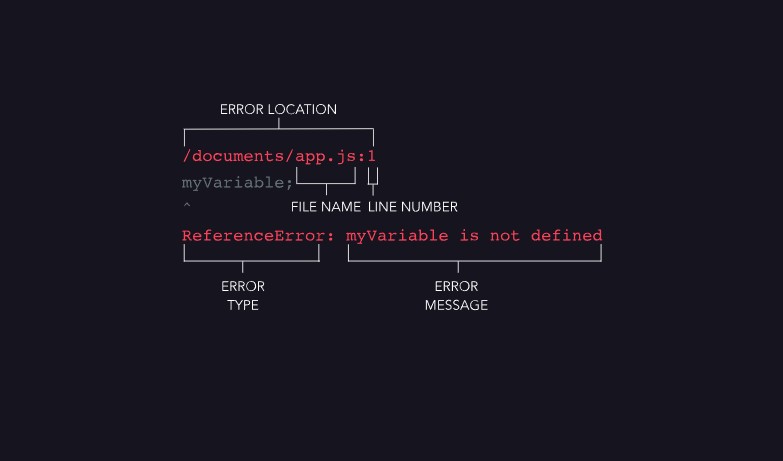
Debugging workflow:

1. Read the error — find the relevant line, ignore the boilerplate
2. Identify the type — TypeError? SyntaxError? ReferenceError?
3. Check what it points at — wrong data type? wrong method? wrong variable?
4. Search if needed — copy the error, make it generic, search MDN or Stack Overflow
5. Implement and test — try the fix, check the result
6. If it does not work — repeat steps 2–4
For a full list of JavaScript error types, see MDN JavaScript Errors Reference
| Error Type | What it means | Common cause |
|---|---|---|
| SyntaxError | Code cannot be parsed. | Missing bracket, comma instead of semicolon |
| ReferenceError | Variable does not exist. | Typo in variable name, used before declared |
| TypeError | Wrong data type for the operation. | Calling .filter() on an object instead of an array |
| RangeError | Value is outside allowed range. | Infinite recursion, invalid array length |
Console tools:

console.log()    → check values at any point
console.error()  → logs errors in red
typeof x         → check the data type of a variable
                       always compare against a string — typeof returns a string value:

  typeof x === 'string'
  typeof x === 'number'
  typeof x === 'boolean'
  typeof x === 'bigint'
  typeof x === 'symbol'
  typeof x === 'undefined'
  typeof x === 'object'    // covers null, arrays, and objects
  typeof x === 'function'
When searching for help:
→ copy the error message
→ make it generic — remove your variable names
→ add "JavaScript" as a keyword
→ check MDN, Stack Overflow, or W3Schools
Common silent bugs — no error thrown but wrong result:

==!  is NOT a valid operator — JS parses it as == (!value), not !==
     x ==! y  →  x == (!y)   ← probably not what you meant
     x !== y  ← this is the correct "strict not equal" operator

Undefined variable inside a loop — easy to miss:
     for (let i = 0; i < arr.length; i++) {
         console.log(arr[j]); // j is not defined — should be i
     }
     This causes a ReferenceError. Check every variable name inside loops.
Edge cases to always test:

→ empty array  []        — does the code handle nothing?
→ single item  [1]       — does it still work with one element?
→ zero         0         — does zero cause unexpected behaviour?
→ boundary     first / last item — does the logic hold at the edges?

If the code works in the middle but fails at the edges,
the logic is incomplete.
Error Handling
Some mistakes return the wrong value but let the program keep running. Others — like reassigning a const — throw an error and stop the program completely. Error handling means anticipating those program-stopping errors and writing a backup plan so the program can keep running.
| Syntax | Description | Example |
|---|---|---|
| Error('msg') | Creates an error object with a custom message. Creating an error does NOT stop the program — it must be thrown. | Error('Your password is too weak.') |
| new Error('msg') | Same as above — with or without new works identically. | new Error('Your password is too weak.') |
| throw | Throws the error. This DOES stop the program — code after a thrown error never runs (unless caught). | throw Error('Something wrong happened'); |
| try { } | The try block holds code that might throw an error. | try { throw Error('x'); } |
| catch(e) { } | e is the caught error object. Code in the catch block runs instead of crashing the program. | catch(e) { console.log(e); } |
// Built-in errors are thrown by the JS engine itself —
// try...catch works on these too, not just your own throw statements:
const someVar = 'Cannot be reassigned';
try {
  someVar = 'Still going to try';
} catch (e) {
  console.log(e);
}
// Prints: TypeError: Assignment to constant variable.
// Program keeps running — code after the try...catch still executes.

// Practical use — handling data you don't control (e.g. from an API):
function capAllElements(arr) {
  try {
    arr.forEach((el, index, array) => {
      array[index] = el.toUpperCase();
    });
  } catch (e) {
    console.log(e);
  }
}

capAllElements('Incorrect argument'); // arr.forEach doesn't exist on a string
// Logs the TypeError instead of crashing the program
Watch out — Future Alan got caught by this:

console.log() must go INSIDE the catch block, not after it, if you want
to log the caught error. A console.log() placed after the try...catch
will run regardless of whether an error was thrown — it won't show you
what went wrong.

try {
    throw Error('oops');
} catch (e) {
    console.log(e);   // ✅ logs the actual error
}
console.log('done');  // runs either way — not useful for debugging the error
Regular Expressions
Regular expressions (regex) are patterns used to match sequences of characters in a string. They are widely used in form validation, search, and string manipulation.
Syntax:  /pattern/flags

const re = /hello/i;   // matches "hello" case-insensitively
| Pattern | Matches | Example |
|---|---|---|
| \d | Any digit (0–9) | /\d+/ matches "42" |
| \w | Any word character (letters, digits, _) | /\w+/ matches "hello_1" |
| \s | Any whitespace character | /\s/ matches " " |
| . | Any character except newline | /h.t/ matches "hat", "hit" |
| ^ | Start of string | /^Hello/ matches "Hello world" |
| $ | End of string | /world$/ matches "Hello world" |
| * | Zero or more of the preceding | /ab*/ matches "a", "ab", "abbb" |
| + | One or more of the preceding | /ab+/ matches "ab", "abbb" |
| ? | Zero or one of the preceding | /colou?r/ matches "color", "colour" |
| {n,m} | Between n and m of the preceding | /\d{2,4}/ matches "12", "1234" |
| [abc] | Any one character in the set | /[aeiou]/ matches any vowel |
| (abc) | Capture group | /(ha)+/ matches "ha", "haha" |
| Flag | Description | Example |
|---|---|---|
| i | Case-insensitive | /hello/i matches "Hello" |
| g | Global — find all matches, not just the first | 'aaa'.match(/a/g) → ['a','a','a'] |
| m | Multiline — ^ and $ match line starts/ends | /^\d/m matches digits at line starts |
// test() — returns true or false
const re = /^\d{5}$/;
re.test('12345');   // true
re.test('1234x');   // false

// match() — returns matches or null
'hello world'.match(/\w+/g);  // ['hello', 'world']

// replace() — replaces matches
'hello world'.replace(/world/, 'there');  // 'hello there'
Common validation patterns:

Email:        /^[^\s@]+@[^\s@]+\.[^\s@]+$/
Digits only:  /^\d+$/
Letters only: /^[A-Za-z]+$/
JavaScript Form Validation
Client-side JavaScript validation gives more control than HTML attributes alone — you can check multiple fields, show custom error messages, and prevent submission until all rules pass.
const form = document.querySelector('form');
const emailInput = document.getElementById('email');
const errorMsg = document.getElementById('error');

form.addEventListener('submit', function(event) {
    if (!emailInput.value.includes('@')) {
        event.preventDefault();
        errorMsg.textContent = 'Please enter a valid email address.';
    }
});
| Technique | Description | Example |
|---|---|---|
| event.preventDefault() | Stops the form from submitting so errors can be shown. | event.preventDefault() |
| .value | Gets the current value of an input field. | input.value |
| .trim() | Removes leading and trailing whitespace. | input.value.trim() |
| regex.test() | Checks if the value matches a pattern. | /^\d+$/.test(input.value) |
| .textContent | Sets an error message in a visible element. | errorEl.textContent = 'Error' |
Validation pattern:

1. Listen for the submit event on the form
2. Read each input's .value
3. Check conditions (length, regex, required fields)
4. If invalid → call event.preventDefault() and show an error message
5. If valid → let the form submit (or handle it with fetch)

Back-end validation is always required in addition to client-side checks.
Client-side validation can be bypassed — it is for user experience only.
Modules (ES6)
Modules are reusable pieces of code in a file that can be exported and imported elsewhere. They keep code separated, prevent naming collisions, and make it easier to find and fix bugs.
| Syntax | Description | Example |
|---|---|---|
| export { } | Named export — export specific values by name. | export { funcA, funcB } |
| export (inline) | Export a value at the point it is declared. | export const greet = () => {} |
| import { } | Named import — import specific values by name. Names must match exactly. | import { funcA } from './module.js' |
| import { } as | Rename an import to avoid naming collisions. | import { greet as greetEspanol } from './greeter.js' |
| export default | Default export — one per module. Export a variable or expression by default. | export default resources |
| export default function | Export a single function as the default directly at declaration. | export default function greet() { ... } |
| export default { } | Bundle multiple functions into the default export as an object — no separate variable needed. | export default { funcA, funcB } |
| import name | Default import — no curly braces. Can be given any name. | import domFunctions from './module.js' |
| type="module" | Required on the <script> tag in HTML when using ES6 import/export. Without it the browser throws an error. | <script type="module" src="app.js"> |
// ── Named export / import ────────────────────────────
// module.js
export const greetEspanol = () => console.log('hola');
export const greetFrancais = () => console.log('bonjour');

// main.js
import { greetEspanol, greetFrancais } from './module.js';

// Rename to avoid collision
import { greet as greetEs } from './greeterEspanol.js';
import { greet as greetFr } from './greeterFrancais.js';

// ── Default export — single function ─────────────────
// module.js
export default function greet() {
  console.log('hello');
}

// main.js — no curly braces, any name works
import greet from './module.js';

// ── Default export — multiple functions ──────────────
// module.js  (option 1 — inline object, no extra variable needed)
export default { greetEspanol, greetFrancais };

// module.js  (option 2 — build object first, then export)
const resources = { greetEspanol, greetFrancais };
export default resources;

// main.js — import the object, then access functions from it
import myModule from './module.js';
myModule.greetEspanol();

// or destructure on import:
const { greetEspanol, greetFrancais } = myModule;
Named vs Default import — spot the difference:
  import { funcName } from './module.js'   ← named   (curly braces, exact name)
  import anyName from './module.js'        ← default (no curly braces, any name)

CommonJS (Node) vs ES6 (browser):
  Node uses:    module.exports = ...  /  require('./module')
  Browser uses: export / import  (ES6)
  ES6 modules also work in Node with some extra setup.